Message formatting
Select Aa to add headings, lists or emphasis to a message. Use these controls to organise a long brief or list of requirements.
The Aa toolbar is on desktop. On mobile, separate paragraphs with blank lines and use hyphens for lists.
Format a message
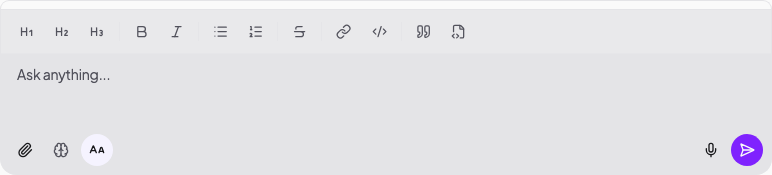
- Select Aa beside the message box.
- Type your message, or select text you have written.
- Select the formatting control you need.
- Send the message.
Select Aa again to hide the formatting toolbar.
Formatting controls
The toolbar includes:
- Heading 1, Heading 2 and Heading 3 for sections.
- Bold and Italic for emphasis.
- Bulleted list and Numbered list for criteria or steps.
- Strikethrough for text you want to mark as removed.
- Link for a web address.
- Inline code for a short technical value or field name.
- Quote for client wording or text from another source.
- Code block for a longer block of fixed-width text.
The toolbar does not include a table control. Ask Kaiya to return a table when you need one:
Compare the candidates in a table with one column for each essential requirement. Separate verified evidence from inference.
To add a link:
- Select the text to link.
- Select Link.
- Enter the web address.
- Select Apply.
Structure a detailed request
Headings and lists work well when you need to distinguish requirements:
Find step-up candidates for the Acme Software CFO role.

Essential requirements
- Previous experience in a PE-backed SaaS company
- Buy-and-build experience
- Based in or able to commute to London

For this client
Step-up includes Divisional CFO, Regional CFO, Finance Director and VP Finance.

Verify that the company was PE-backed during each person's employment. Flag missing evidence.
The wording does not need to follow a fixed template. Use headings when a long request contains several requirements or source notes.
Format messages on mobile
Mobile has no Aa button or formatting toolbar. You can still organise your message as you type:
- Add a blank line between paragraphs.
- Start a list with a hyphen and a space.
- Tap Send to send the message. Enter adds a line.
For toolbar formatting, open the conversation on desktop.
Keyboard shortcuts on desktop
Select text in the message box before you use a formatting shortcut.
| Format | Mac | Windows |
|---|---|---|
| Bold | Command + B | Control + B |
| Italic | Command + I | Control + I |
Use Aa, then Link, to add a link. Control + K starts a new conversation on both Mac and Windows.
See Keyboard shortcuts for sending messages and working with conversations.